Twelve short, hands‑on lessons that teach every part of Fiscalina — your clients, your work, your deadlines, your billing. Follow along, click the interactive bits, and by the end you'll run your firm on it without thinking twice.
No account yet? You can read every lesson without signing in — the screenshots come straight from the app. When you're ready, start a free 14‑day trial (no card) and do each lesson for real in a second tab.
Your progress is saved in this browser as you tick lessons off. ⌘K / Ctrl‑K jumps to search.
Lesson 1 · Foundations~7 min
Getting started
Create your firm, find your way around the workspace, and bring your client list in. This is the 10 minutes that makes every other lesson click.
By the end you'll be able to
Start a firm and sign in
Name every part of the workspace
Import your clients from Drake, Lacerte, ProConnect or UltraTax
Move around with the keyboard and the ⌘K palette
1 · Create your firm
Everything starts on the marketing site. Click Start free trial, enter your name, firm name, work email and a password — that's the whole sign‑up. Fiscalina spins up a private, isolated workspace (a "tenant") just for your firm and drops you straight onto the dashboard. No credit card for 14 days.
🔐
You are the Owner. The first user owns the firm and can invite colleagues later from Settings → Team, each with a role that controls what they can see and do (Lesson 9).
2 · The lay of the land
The whole app is a single screen that never reloads. Three regions do all the work — click the numbered pins to learn each one.
app.fiscalina.com
1
The rail (left).
Your navigation: Work, Clients, Deadlines, My Work, Requests, Documents, Billing, Capacity, Proposals, Reports, Settings. Collapse it with the chevron to reclaim space.
2
Global search.
Find any client instantly. For everything else — views, records, create actions — press ⌘K.
3
Timer & + New.
The one‑click timer lives here, next to the quick‑create button (or just press N). More in Lesson 7.
4
Your avatar.
The circle with your initials. Click it for your profile menu — including a link back to this Academy — and to sign out.
5
The dashboard.
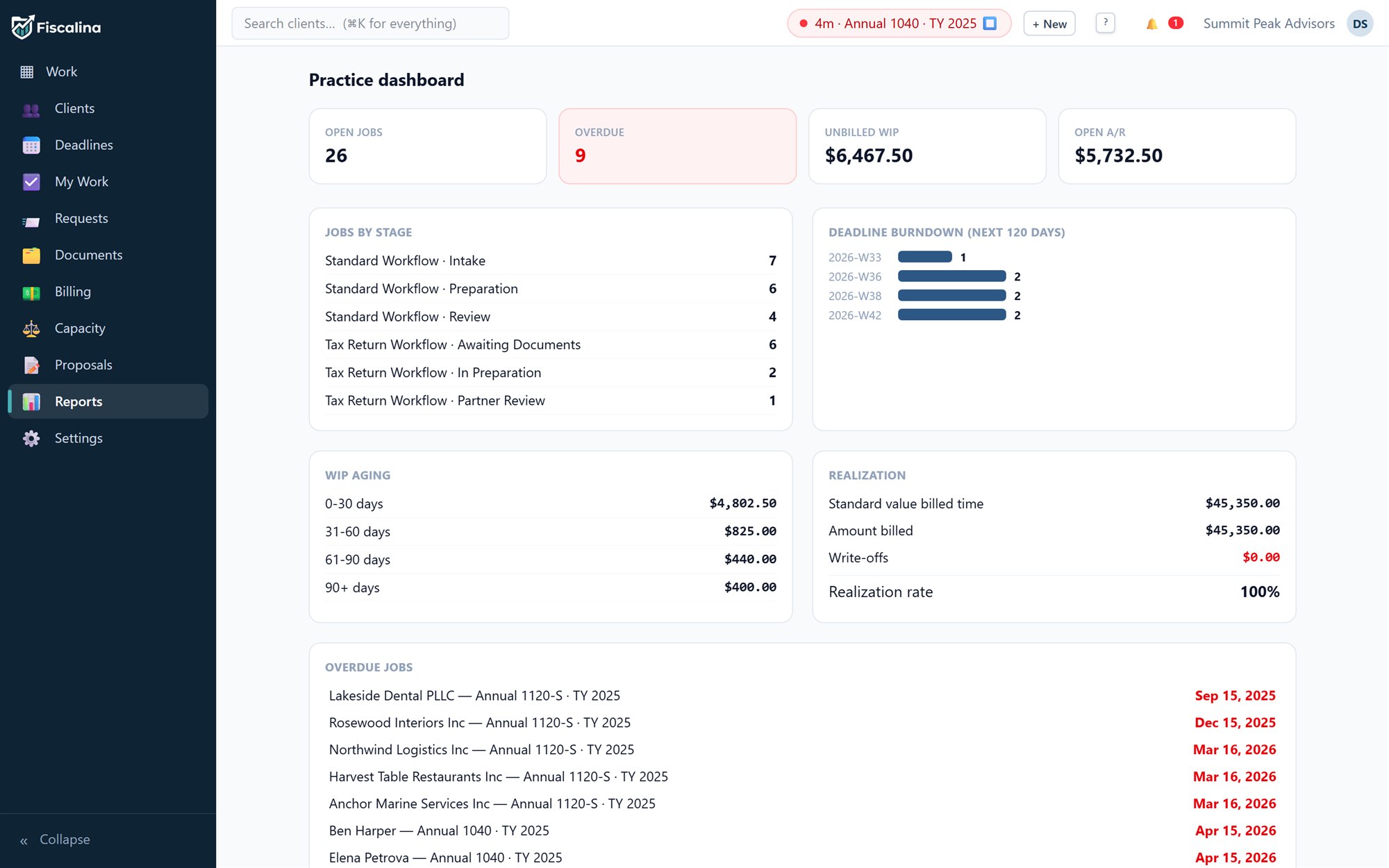
Your firm at a glance: open jobs, overdue work, unbilled WIP, open A/R, WIP aging and a deadline burndown. Every number is a live link.
↑ Click a pin to read what it does
3 · Bring your clients in
An empty firm is no fun. Fiscalina imports your existing client list from the big four tax packages, so you're productive on day one.
Open the importer
Go to Settings → Import and pick your source: Drake, Lacerte, ProConnect or UltraTax. Each one maps its own column headers automatically.
Upload your CSV
Export a client list from your tax software, drop the CSV in, and Fiscalina shows a preview — exactly what it will create, with duplicates already flagged.
Commit
Happy with the preview? Click Import. Clients, entity types and contacts are created in one go. Re‑running the same file won't create duplicates.
💡
No CSV handy? Add a client by hand in two clicks from the Clients screen — or press N anywhere and choose "Client". You'll do exactly that in Lesson 2.
4 · Move like a pro from day one
Fiscalina is built to be driven from the keyboard. You don't have to — but learning three shortcuts now pays off forever.
⌨️⌘K
The command palette — go anywhere, open any record, run any create action. Your Swiss‑army knife.
➕N
Quick‑create. One key, then pick what to make: client, job, request, invoice…
↩︎Esc
Closes the drawer or dialog you're in. When in doubt, press Escape.
❓?
Shows the full keyboard map any time you forget one.
Lesson 2 · Foundations~9 min
Clients & CRM
Your client list is the spine of the whole system — every job, deadline, request and invoice hangs off it. Let's make it rich, searchable and tidy.
By the end you'll be able to
Create clients of any entity type and add their contacts
Store sensitive IDs (EIN/SSN) securely
Organize with custom fields, tags and groups
Build saved smart lists you'll use every day
Keep notes and read a client's full history
The Clients screen
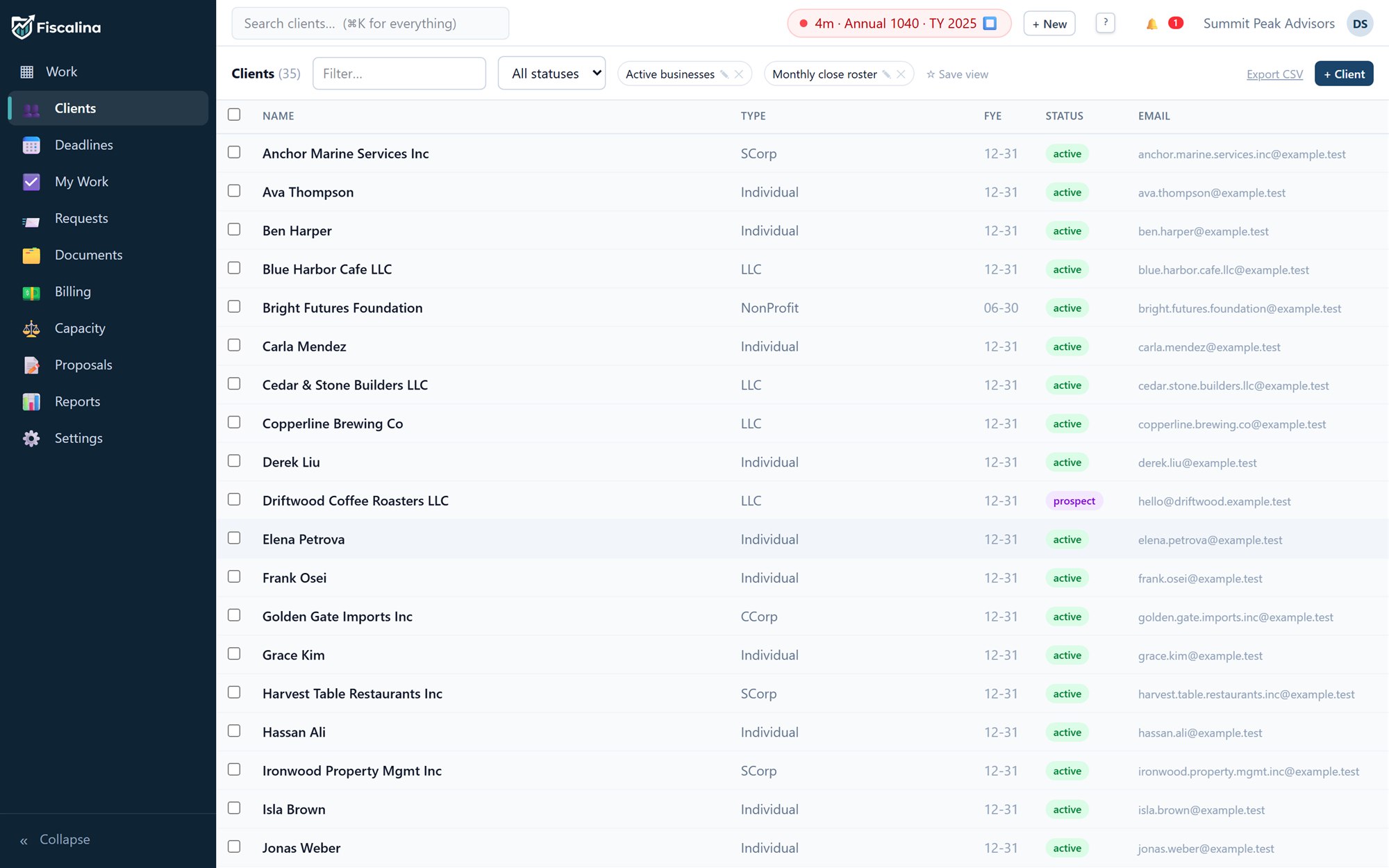
This is a fast, spreadsheet‑style table that only renders the rows you can see (so 5,000 clients scroll as smoothly as 50). Click any row to open the client's drawer — a panel that slides in from the right with everything about them.
app.fiscalina.com/app#/clients
1
Filters & smart lists.
Narrow by type, partner, tag or any custom field — then save that filter as a named list you can return to.
2
Export & + New.
Export the current view to CSV, or add a client. Bulk‑select rows to tag or archive many at once.
3
The checkbox column.
Tick rows to act on them in bulk — apply a tag, archive, or assign a partner to a whole segment.
4
A client row.
Click anywhere on a row to open the drawer. Names, emails and dates are editable inline — click the value, type, press Enter.
↑ Click a pin to explore
Create a client
Press N → Client
Or click + New on the Clients screen.
Pick an entity type
Individual, Sole Prop, Partnership, S‑Corp, C‑Corp, Trust, Non‑profit… The type drives which statutory deadlines apply later (Lesson 4).
Assign the team
Set the partner, manager and bookkeeper. These power "My Work", capacity and permissions.
The client drawer
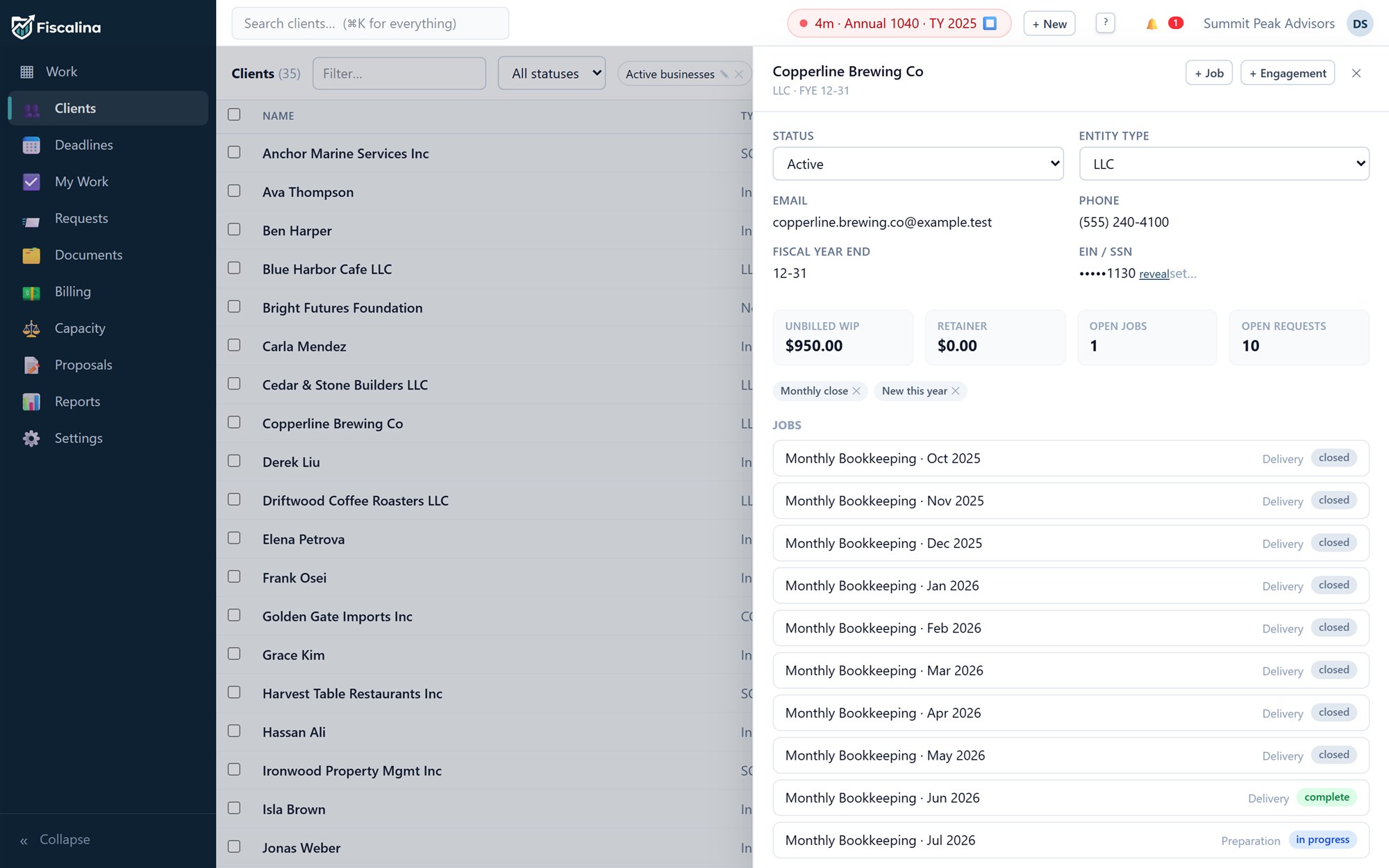
Everything about a client lives in tabs here — contacts, jobs, requests, documents, billing, Notes and Activity.
Client drawer
1
Header & tabs.
The client's name, type and team up top; tabs for every related record below.
2
Contacts & custom fields.
Add as many people as you like (spouse, controller, CFO) and any custom fields your firm defined.
3
Notes & Activity.
Jot internal notes (edit your own, marked "edited"), and read a tamper‑proof timeline of everything that's happened.
↑ Click a pin
Sensitive IDs are encrypted
🔒
EIN and SSN are stored encrypted (AES‑256). They show as •••• until you click Reveal — and every reveal is written to the audit log. Only roles you allow can reveal them.
Organize: fields, tags, groups & smart lists
🏷️ Tags
Freeform labels — "1040", "monthly", "VIP". Filter and bulk‑apply them.
🧩 Custom fields
Add fields specific to your firm (portal login, software, fiscal year end). They become filters too.
👪 Groups
Link related clients — a business and its owners — so you see the whole relationship.
⭐ Smart lists
Save any filter combination as a named list: "S‑Corps I manage", "Missing engagement letter".
Lesson 3 · Doing the work~10 min
Work: pipelines, jobs & recurring engagements
This is where the firm actually runs. Jobs move across a board, tasks gate each stage, and recurring engagements create next period's work for you automatically.
By the end you'll be able to
Read and drive the work board (kanban)
Advance a job with one click or one key
Use tasks, dependencies and stage automations
Set up a recurring engagement that generates work on schedule
The work board
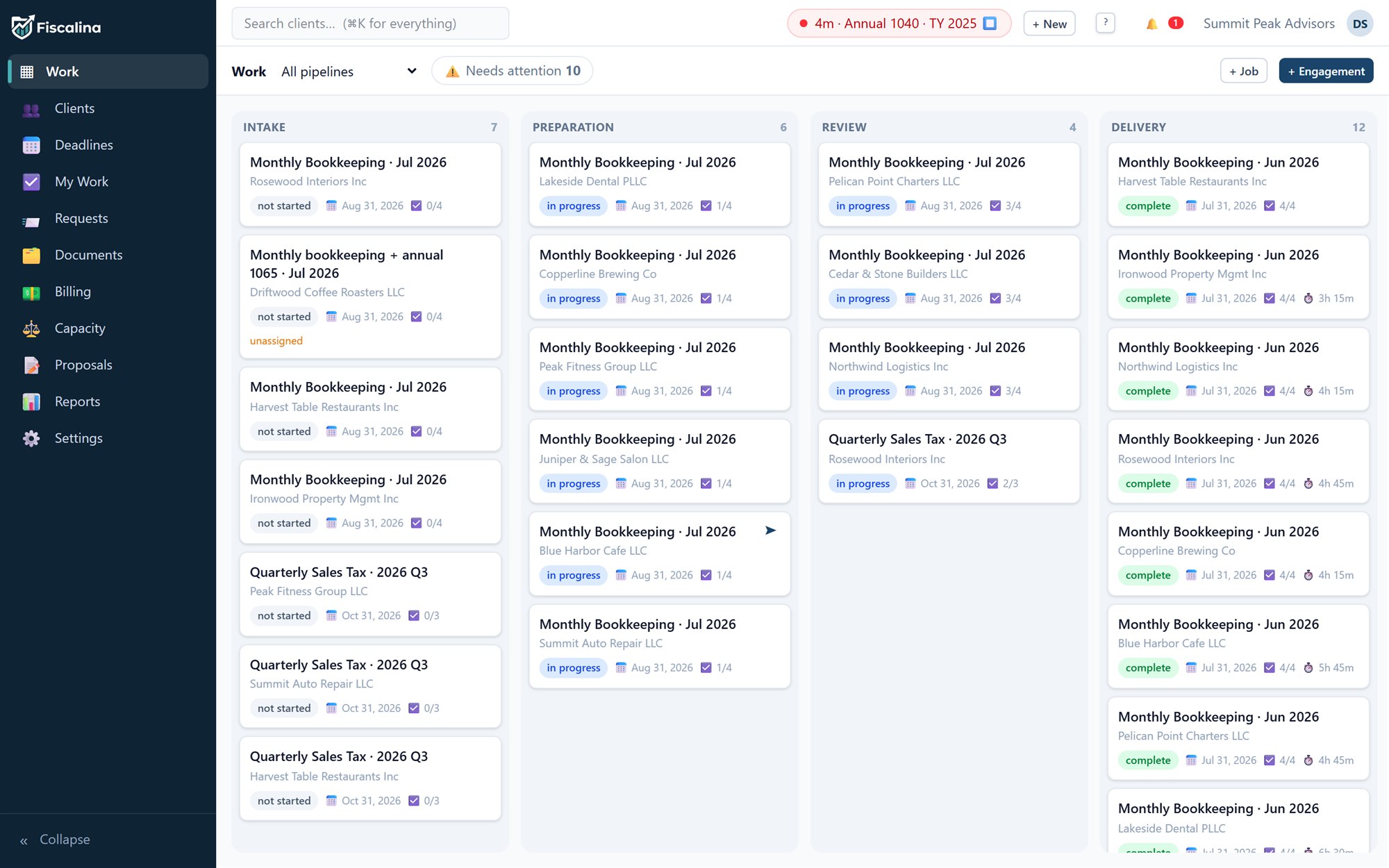
Every job is a card; every column is a stage of your pipeline (e.g. Not started → In progress → In review → Ready to file → Complete). Drag a card to advance it, or select it and press E.
app.fiscalina.com/app#/work
1
Columns = stages.
Your pipeline's stages. Configure them per work type in Settings.
2
Job cards.
Each card shows the client, work type, assignee, deadline chip and WIP. Drag to move, or press E to advance.
3
Filters & views.
Filter by assignee, work type or deadline; save the arrangement as a view.
↑ Click a pin
Try it
Drag a job across the board
Grab a card and drop it in the next column — exactly how it feels in the app. Move all three to "Complete" to finish.
🎉 Nice — that's the core loop of every busy season. In the real app, advancing a job can also fire automations (below).
Tasks, gates & dependencies
A job is more than a card — it holds a checklist of tasks. Some are required, which means the job can't leave a stage (or be marked complete) until they're done. Tasks can depend on others, so work can't start out of order, and a blocked task bounces back to the prior stage.
⚡
Stage automations do the busywork: entering a stage can notify the assignee or auto‑send a draft request to the client. Set these up per pipeline in Settings.
When work doesn't pass review
Set a job's status to In review and the reviewer gets two clear choices in the job drawer:
✓ Pass review
The work is good — the job moves on to complete.
↩︎ Send back
Something needs fixing. You must write a reason; the job returns to In progress and the preparer is notified with your note.
Every send‑back is recorded. The drawer shows a Revision N badge and a Review history — who sent it back, when, and why — so a job that bounced three times is never mistaken for a clean one. The board card carries a small ↩︎N so reworked jobs stand out at a glance.
🔁
To force a specific fix, reopen the required task (set it back to To do). Because required tasks gate the stage, the job can't return to review until that task is done again.
Recurring engagements — work that creates itself
Most firm work repeats: monthly bookkeeping, quarterly payrolls, annual returns. An engagement describes that recurring commitment, and Fiscalina generates the next job on schedule so nothing is forgotten.
Create the engagement
Pick the client, the work type and a frequency (monthly, quarterly, annual…). The first job is created immediately.
Let the clock run
A background process creates each new period's job at the right time — and catches up if you were away.
Pause, end or roll forward
Pause or end an engagement to stop generation. Use bulk roll‑forward to advance a whole book of clients into the new year at once. Clone an engagement as a template for similar clients.
Lesson 4 · Doing the work~7 min
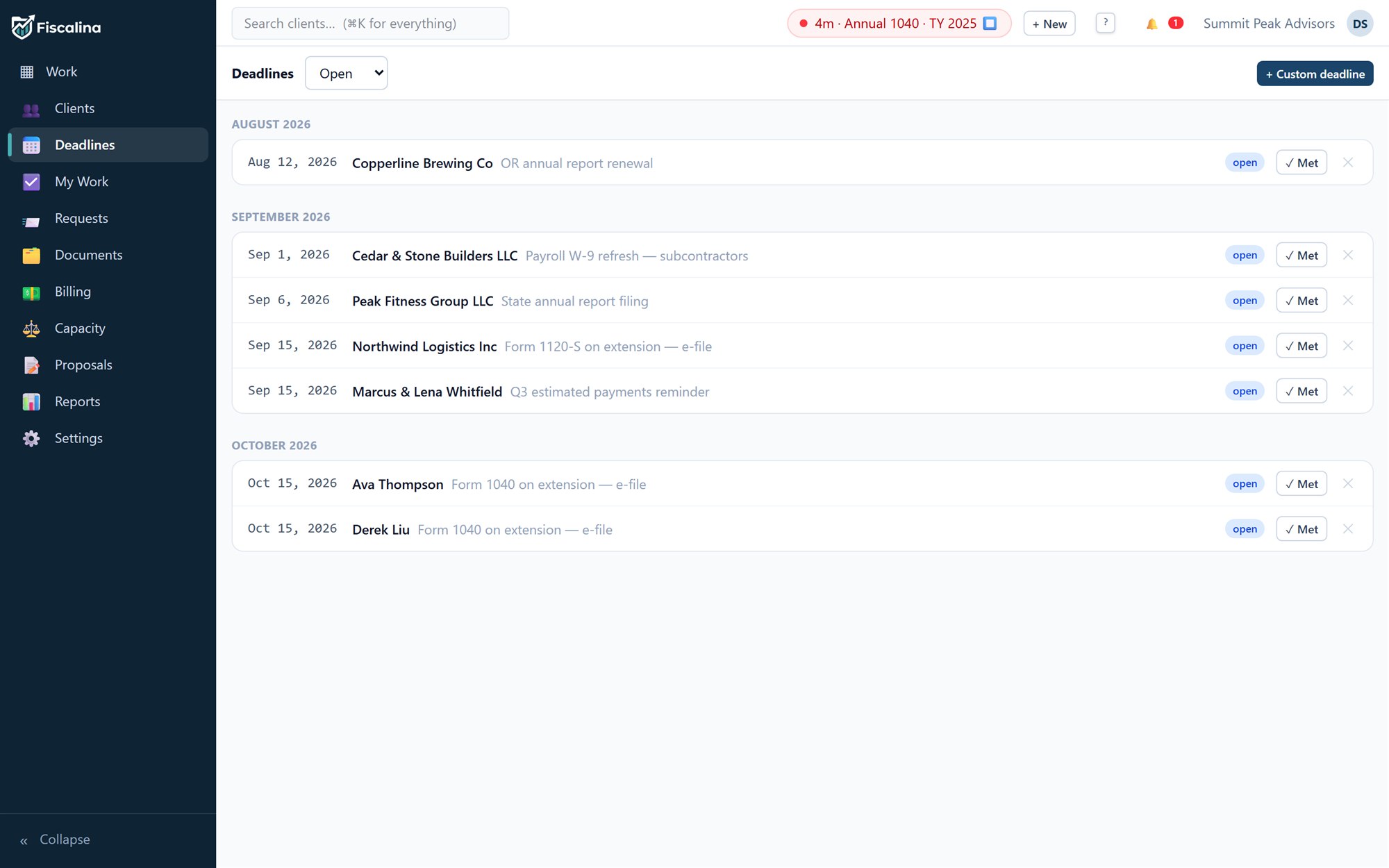
The deadline engine
Fiscalina knows the statutory calendar so you don't have to. It computes due dates from the entity type, tax year and fiscal year end — and rolls weekends and holidays forward correctly.
By the end you'll be able to
Trust automatic statutory due dates
File an extension and watch the date recompute
Add custom deadlines
Tune escalating reminders
How due dates are computed
For each obligation the engine takes the entity type, tax year, fiscal year end and jurisdiction and returns the statutory due date. If that date lands on a weekend or a recognized holiday (including quirks like DC's Emancipation Day), it rolls forward to the next business day — automatically.
app.fiscalina.com/app#/deadlines
1
Obligation & client.
What's due and for whom, grouped so you can work a filing season top to bottom.
2
Statutory due date.
Computed for you, already rolled past weekends/holidays.
3
Status & extension.
Mark extended and the due date recomputes to the extended statutory date.
↑ Click a pin
Extensions
Mark a filing extended and the engine recomputes the due date to the extended deadline — and the schema guarantees the extended date can never be earlier than the original. No manual date math, no impossible dates.
Custom deadlines & reminders
➕ Custom deadlines
Add anything the statutory engine doesn't cover — a client‑specific milestone, an internal cutoff. They live on the same board.
🔔 Escalating reminders
Reminders fire on a schedule as a date approaches, at most once each, and stop the moment the work is complete. No nagging, no duplicates.
Lesson 5 · Working with clients~9 min
Requests & the client portal
Chasing documents is the worst part of the job. Fiscalina turns it into a tidy checklist your client fills in through a passwordless portal — and it chases them for you.
By the end you'll be able to
Build an itemized PBC (prepared‑by‑client) request
Send a magic‑link portal with no password for the client
Let uploads tick items off automatically
Send organizers with prior‑year prefill and conditional questions
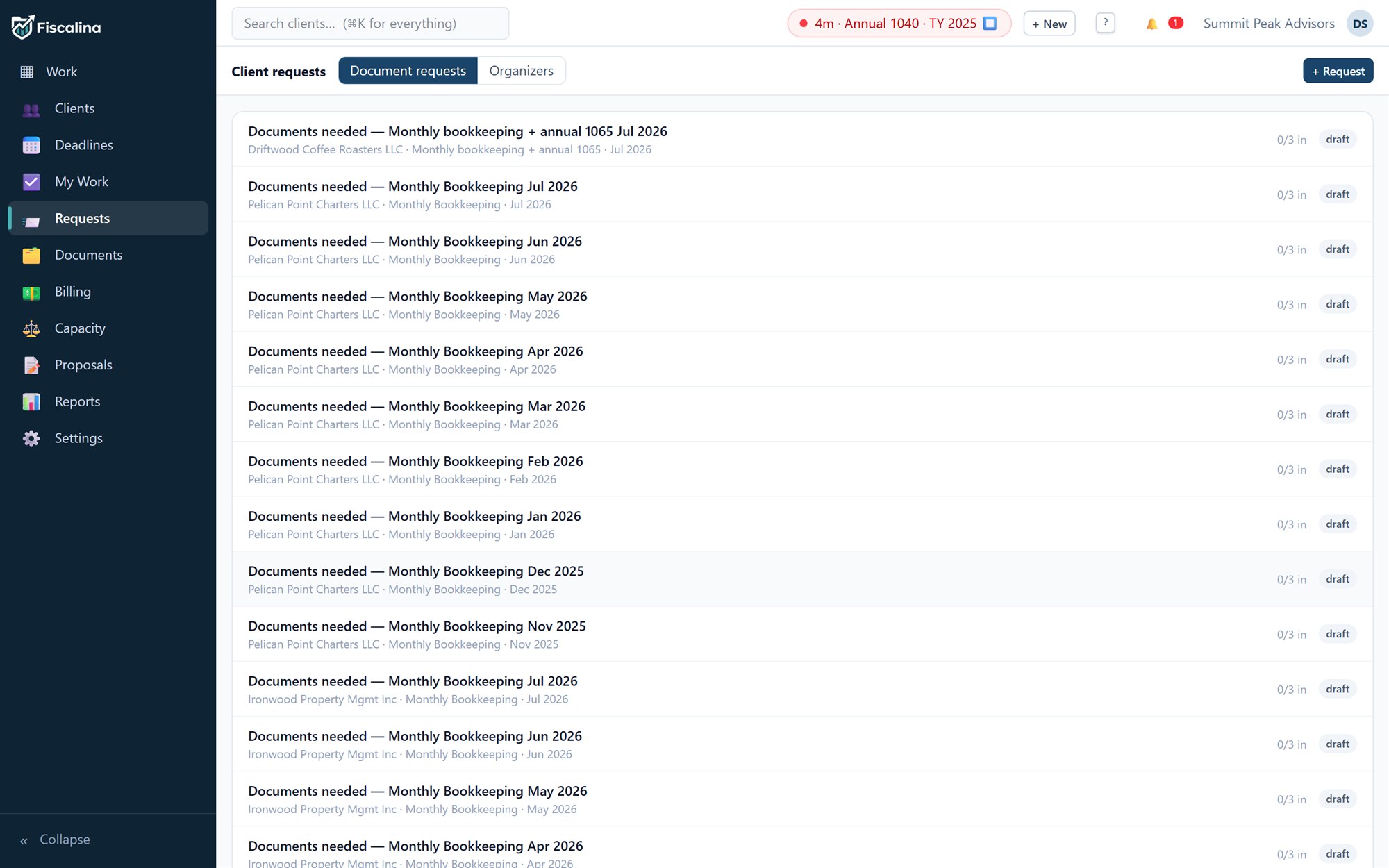
A request is a checklist
Build a list of exactly what you need — "2023 W‑2", "mortgage interest 1098", "K‑1s". The request's status is derived from its items: as each arrives, the list updates itself, and the request can gate a job so preparation doesn't start until everything's in.
app.fiscalina.com/app#/requests
1
Items.
Each line is one thing you need. Received items are checked off automatically on upload.
2
Derived status.
Open → partially received → complete, computed from the items — never set by hand.
3
Auto‑chase.
Fiscalina nudges the client at 3, 7 and 14 days until they finish. Silent once complete.
↑ Click a pin
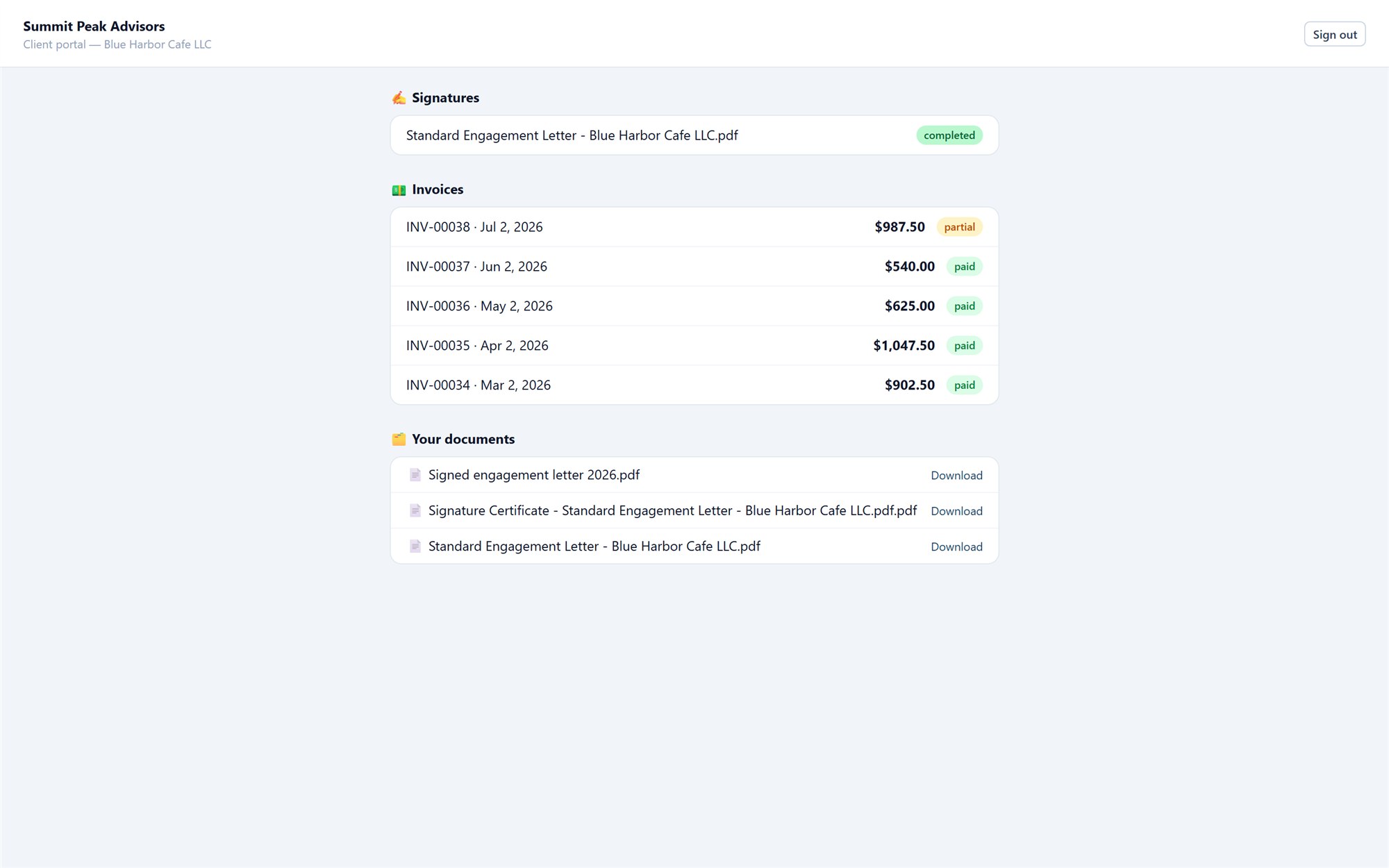
The client portal — no password required
Clients get a magic link. They click it, see their checklist, and upload — no account to create, no password to forget. Each upload marks its item received in a single, consistent step on your side.
portal — what your client sees
The client's view: friendly, branded, and impossible to get lost in.
Organizers
For tax season, send an organizer — a smart questionnaire that prefills last year's answers and shows conditional questions (ask about rental income only if they say they have a rental). Far less work for the client, far cleaner data for you.
Lesson 6 · Working with clients~8 min
Documents & e‑signature
Every file in one organized place, with real version history — and a built‑in, legally‑sealed e‑signature so you never leave the app to get an 8879 signed.
By the end you'll be able to
Organize files in per‑client folders with versioning
Control internal vs client‑visible documents
Send an 8879 or engagement letter for signature
Understand the tamper‑evident signing seal
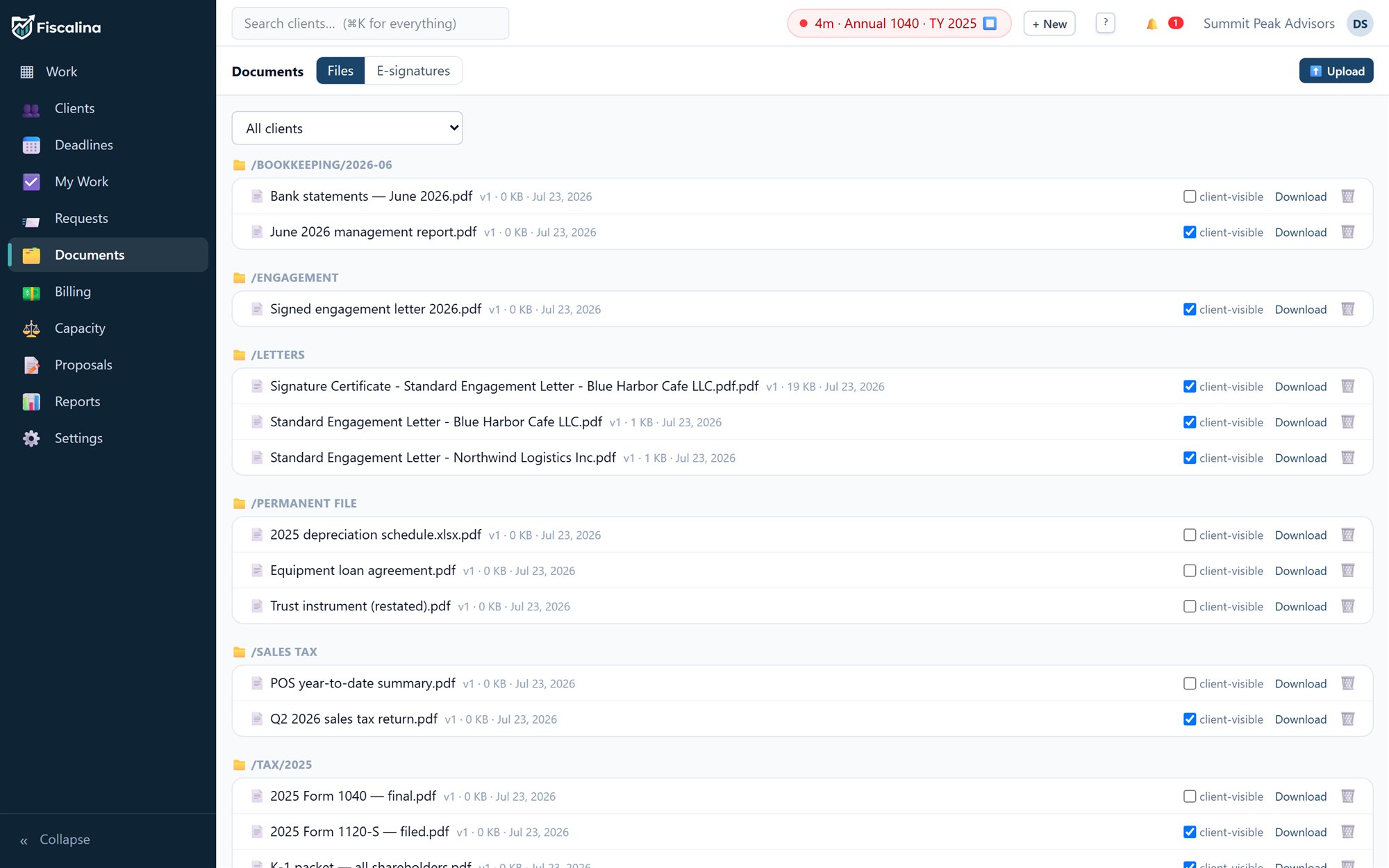
Folders & versioning
Each client has document folders. Upload a file with the same name as an existing one and Fiscalina keeps it as a new version rather than overwriting — the history is always there. Mark documents internal or client‑visible to control what shows in the portal.
app.fiscalina.com/app#/documents
1
Folders.
Per‑client organization. Everything filed where you'd expect it.
2
Version & visibility.
See the version and whether a file is internal or visible to the client.
3
Send for signature.
Kick off an e‑sign request right from the document.
↑ Click a pin
Templates: 8879s & letters
Generate an 8879 or an engagement letter from a template with merge fields (client name, tax year, amounts) filled in automatically. Letter text and template kind are editable to match your firm's language.
Sealed, tamper‑evident signing
🛡️
When a document is signed, Fiscalina produces a certificate PDF and a SHA‑256 hash chain of the signing events. If a single byte of the signed file changes afterward, verification fails — so a signature can be proven genuine. You can also void or expire a request that's no longer needed.
✋
Once a document is sent or signed, it's locked from editing — that's what makes the signature trustworthy. Need a change? Void and re‑issue.
Lesson 7 · Getting paid~12 min
Time & billing
The money engine. Track time with one click, turn work‑in‑process into invoices without ever double‑billing, take payment, and let Fiscalina chase overdue invoices for you.
By the end you'll be able to
Track time with the one‑click timer
Understand WIP and how rates are resolved
Create an invoice from WIP safely
Take payments, handle retainers, and correct mistakes
Let overdue dunning run itself
The one‑click timer
The timer lives in the top bar on every screen. Click to start against a client/job; click again to stop. It's idempotent — a double‑tap on stop won't create a phantom entry. Prefer entering time after the fact? Add or edit entries by hand any time.
the timer, top bar
Start · running · stop — the whole timer.
WIP & how rates are resolved
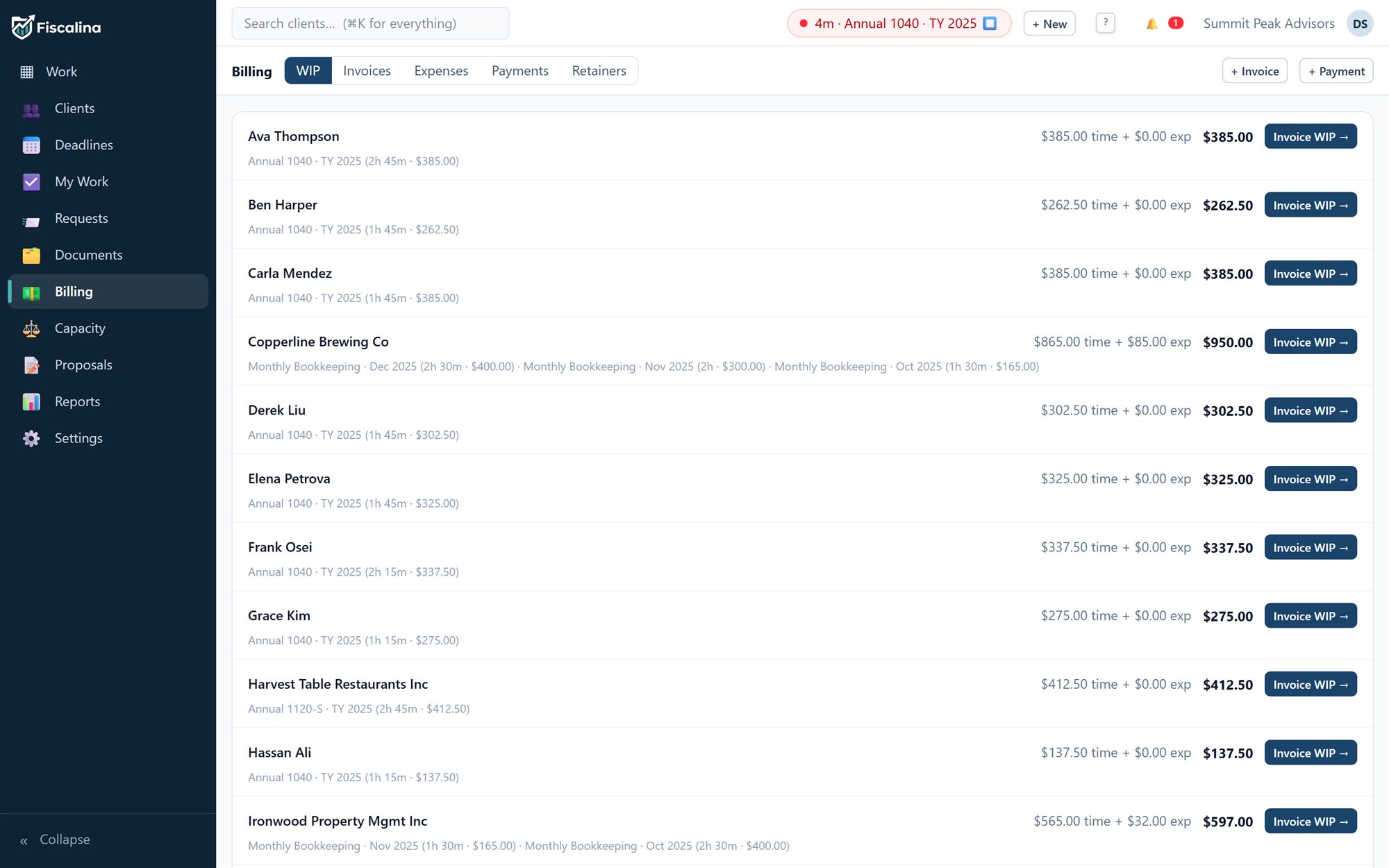
Every tracked hour becomes work‑in‑process (WIP) — unbilled value waiting on an invoice. The rate for each entry is resolved in a clear order:
User rate
A specific rate for this person, if set.
Role rate
Otherwise the rate for their role.
Service rate
Otherwise the rate for that service/work type.
Firm default
Otherwise your firm's default rate. Always a defined answer.
app.fiscalina.com/app#/billing — WIP
1
Unbilled WIP rows.
Every hour and expense not yet invoiced, by client and job.
2
Bill / write‑down.
Select rows to invoice, or write value down when you won't bill the full amount.
↑ Click a pin
Invoice from WIP — without double‑billing
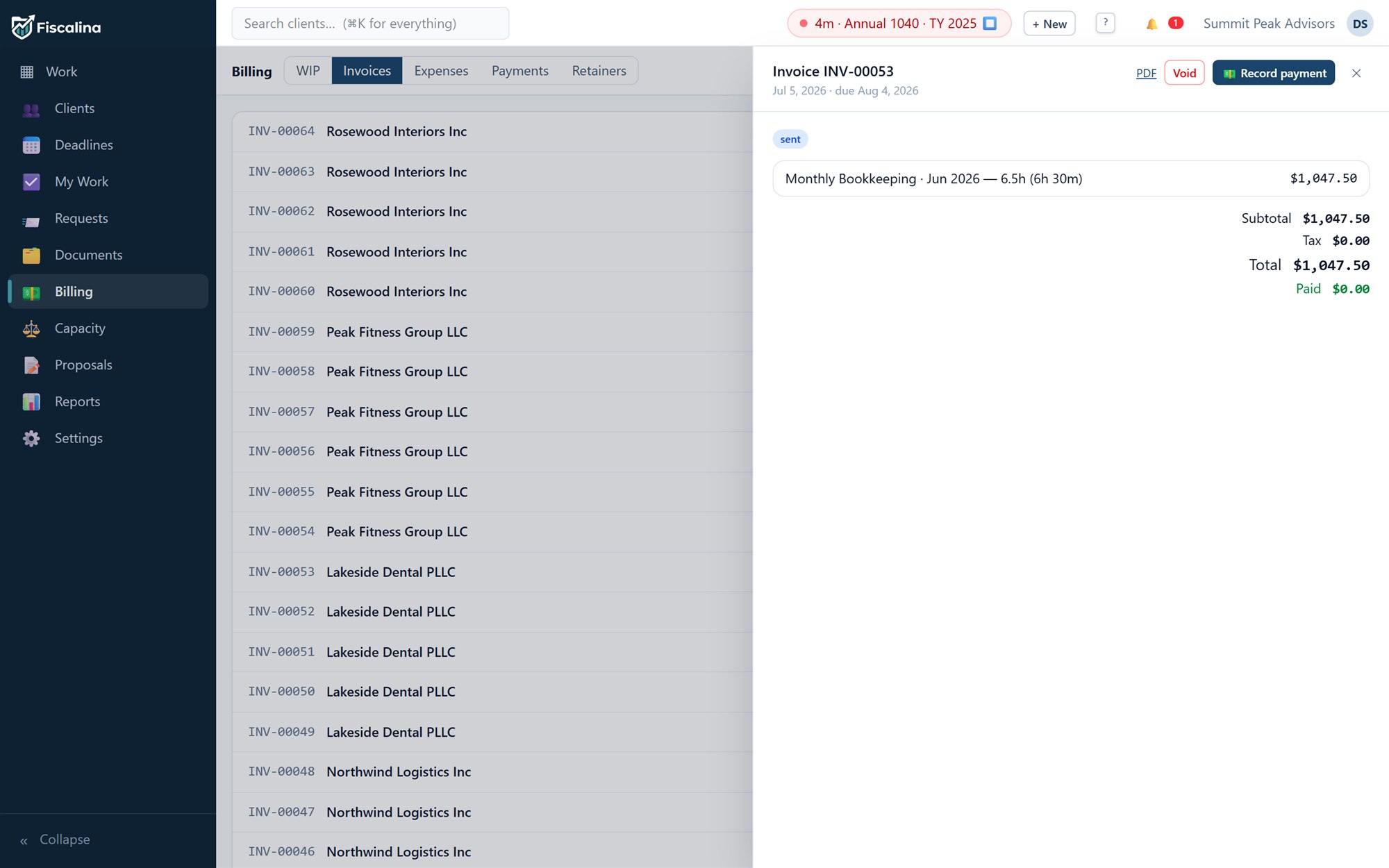
Create an invoice from selected WIP and Fiscalina locks those rows as it bills them, so the same hour can never land on two invoices. You can write down value, and the invoice is a proper document you can style (Lesson 9).
an invoice
1
Line items.
Pulled from WIP, editable, totalled in exact integer cents (no rounding drift).
2
Send & take payment.
Email it, and collect via Stripe. Payments post back automatically.
↑ Click a pin
Payments, retainers & corrections
💳 Payments
Allocated exactly against invoices. Stripe payments reconcile automatically via webhook.
🏦 Retainers
Hold client funds; balances can never go negative and are always conserved.
↩︎ Void & correct
Ledgers are append‑only. To fix a payment you void it — a reversing entry — which reopens the invoice and returns WIP. Nothing is ever silently edited.
📮 Dunning
Overdue invoices are chased automatically at +3, +7 and +14 days — once each, and silently once paid.
📒
Why "void" instead of "edit"? Money records are a ledger. Keeping them append‑only and correcting by reversal means your books always reconcile and you have a perfect audit trail — the same discipline you'd apply to a client's accounts.
Lesson 8 · Running the firm~9 min
Capacity, proposals & reports
Zoom out from individual jobs to run the firm: who's overloaded, how new clients come aboard, and whether the practice is healthy.
By the end you'll be able to
Read the capacity board and rebalance workload
Use "My Work" as your personal queue
Win new clients with proposals that auto‑provision the work
Read the practice dashboard and profitability
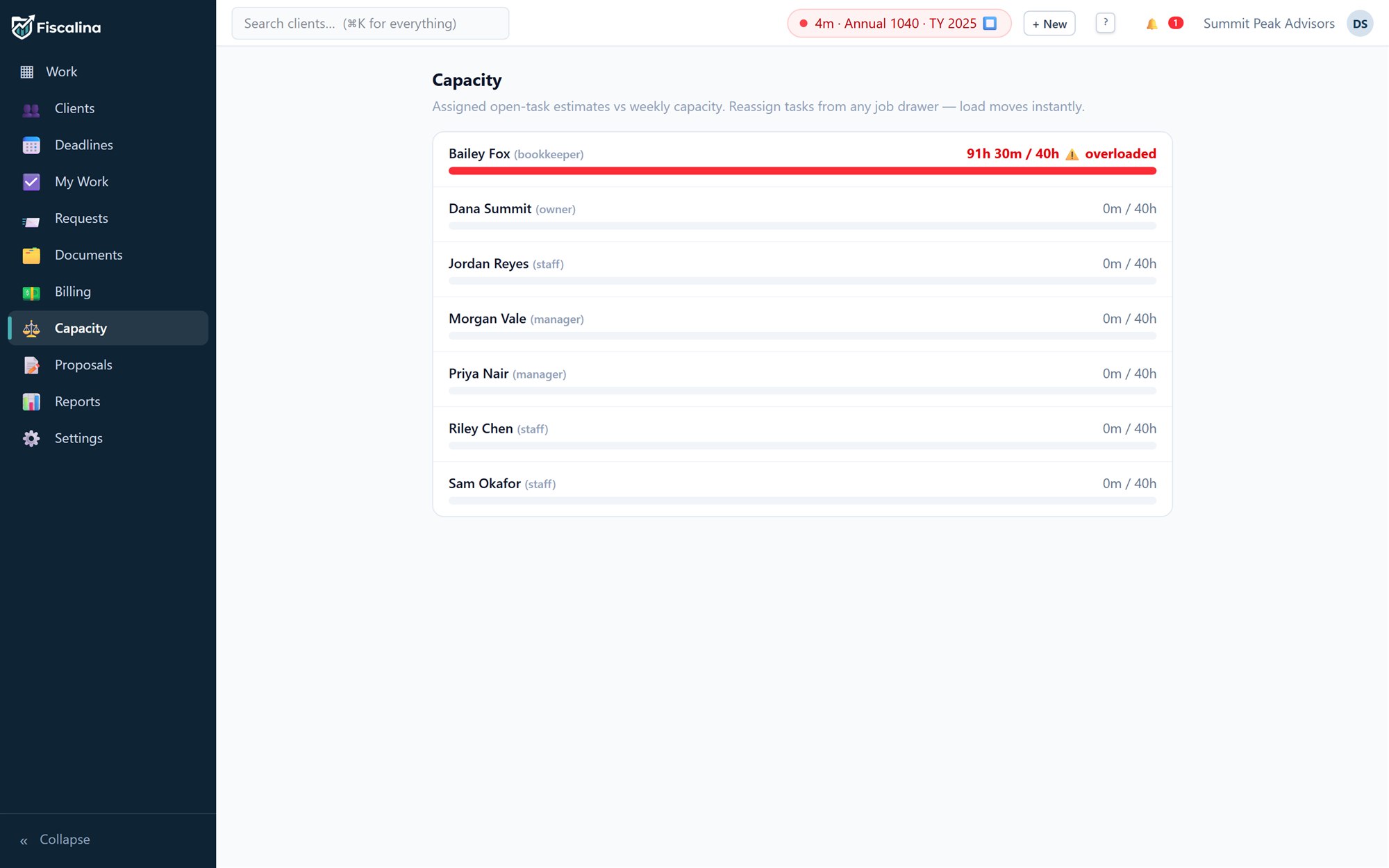
Capacity — who can take more?
The capacity board sums each person's open assigned work (by estimate) against their weekly capacity, so overload is obvious before it becomes a missed deadline. Reassign to rebalance.
app.fiscalina.com/app#/capacity
Green has room, red is over capacity — reassign to level it out.
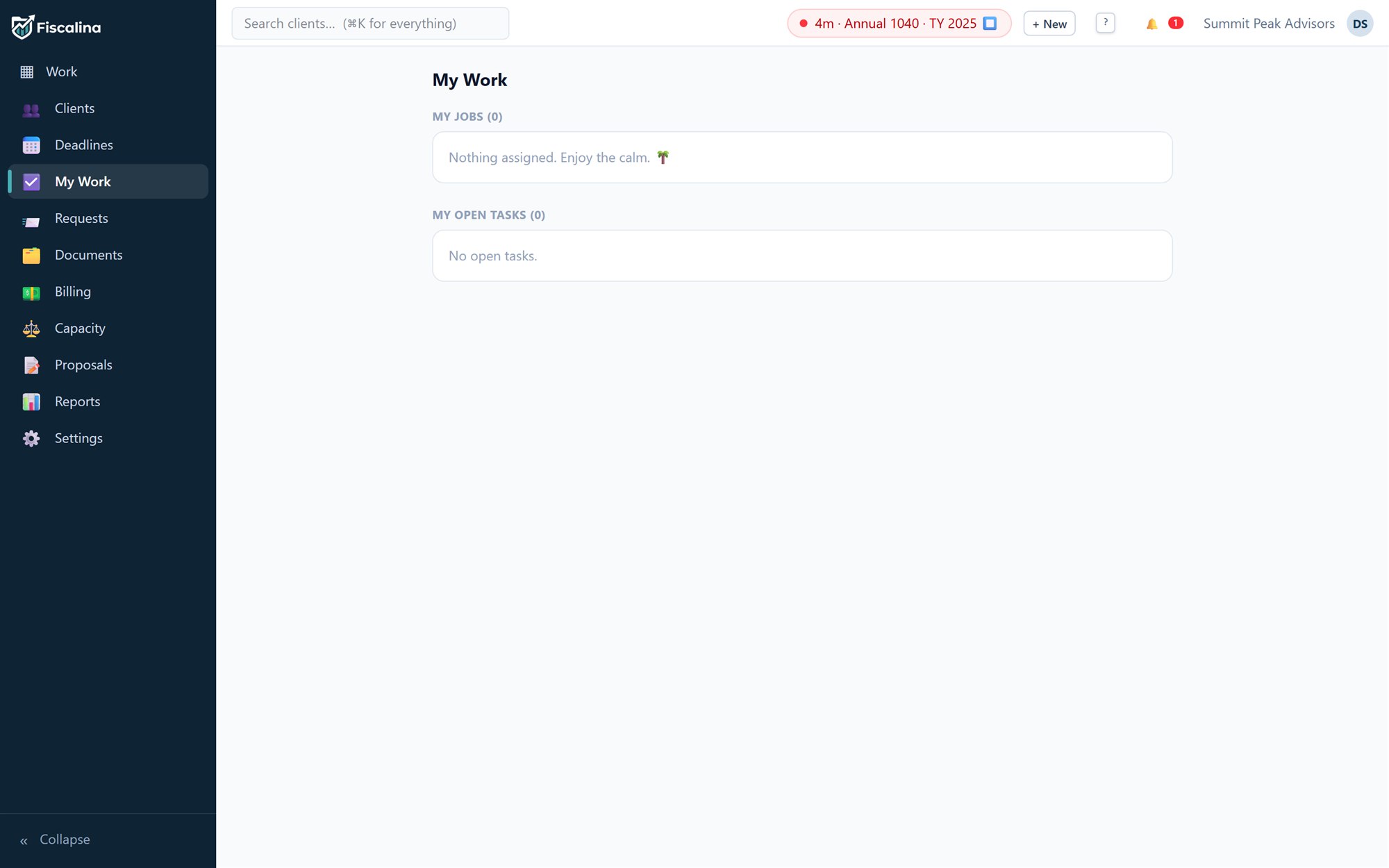
My Work — your personal queue
Everyone gets a focused list of what's assigned to them, what needs attention, and what's due — cutting through the whole‑firm board to just your next actions.
app.fiscalina.com/app#/mywork
Start here every morning.
Proposals — onboarding that provisions itself
Send a proposal with line items to a prospect. They accept or decline on a public page — and on acceptance Fiscalina provisions the engagement and first job exactly once. Expired proposals are swept automatically.
Reports & the dashboard
The practice dashboard shows stages, overdue work, a burndown, WIP aging and realization. Job‑level profitability tells you which work actually pays.
📈 Realization
Billed vs. worked — are you capturing your value?
⏳ WIP aging
How long value sits unbilled. Old WIP is cash you haven't collected.
🔥 Burndown
Are you keeping pace through the season?
💰 Job profitability
Revenue minus cost per job — repeat the winners, reprice the losers.
Lesson 9 · Running the firm~10 min
Settings & admin
Make Fiscalina yours: brand your invoices, connect your other tools, manage your team's access, and lock the whole thing down.
By the end you'll be able to
Design branded invoices with a live preview
Connect integrations with your own app credentials
Manage team roles and permissions
Turn on 2FA and manage your plan & billing
Invoice designer
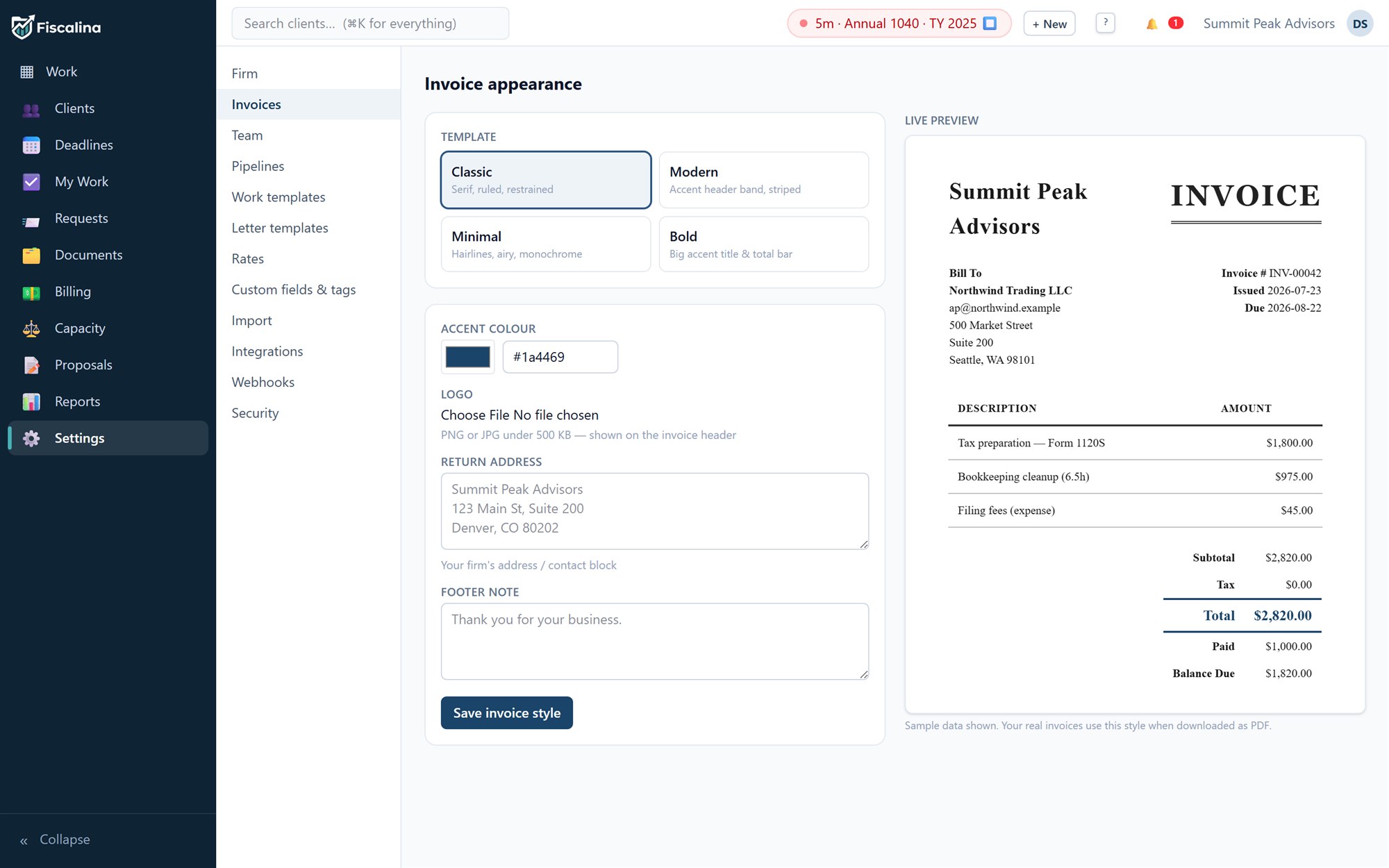
Under Settings → Invoices, pick a preset (Classic, Modern, Minimal, Bold), set your accent color, upload a logo, and add a footer and "from" address. A live preview renders exactly what your client will receive — and it's the same template used for the PDF.
Settings → Invoices
1
Controls.
Preset, accent color, logo, footer, from‑address.
2
Live preview.
Updates as you type — WYSIWYG with the real PDF.
↑ Click a pin
Integrations — bring your own credentials
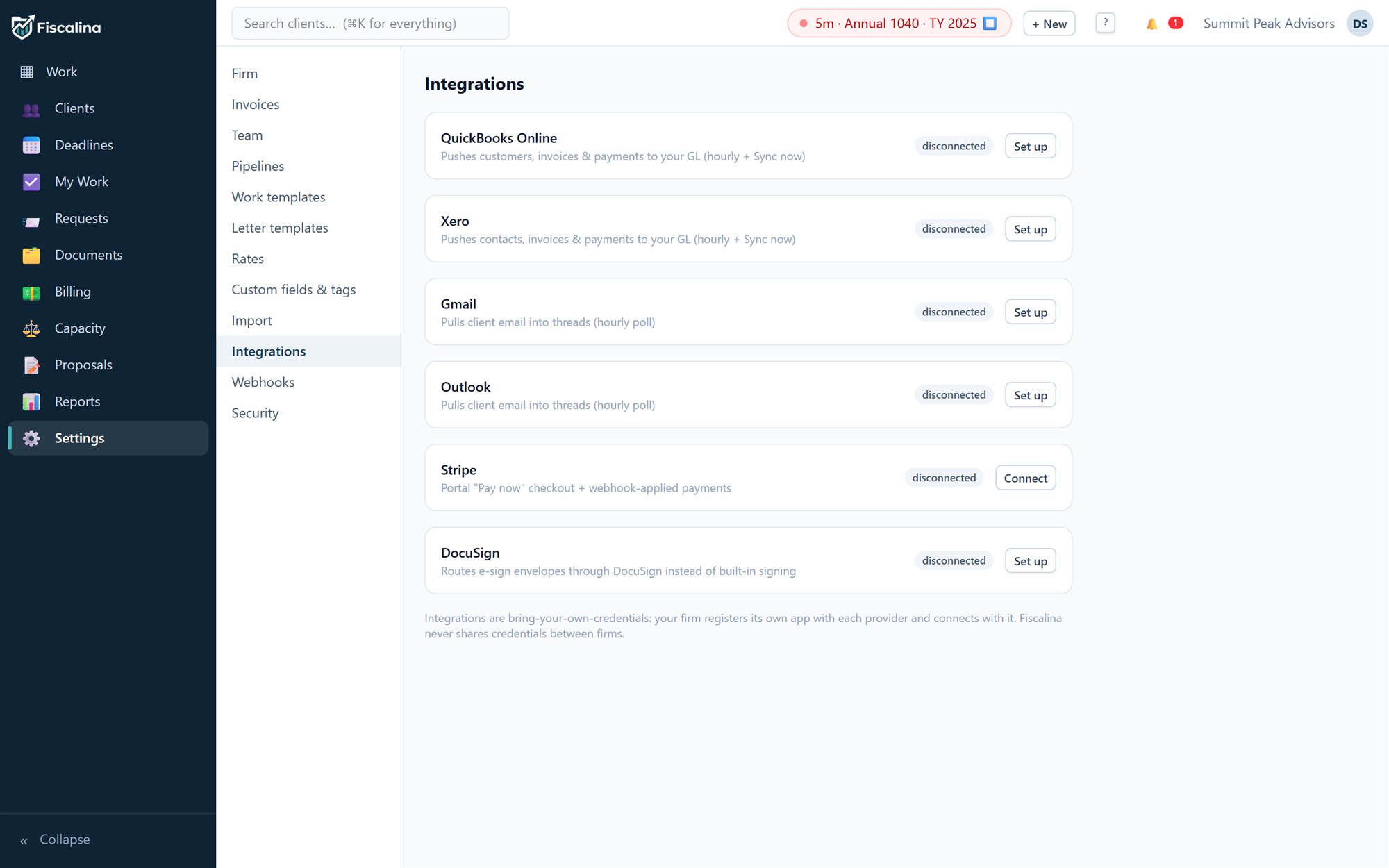
Connect QuickBooks Online, Xero, Gmail/Outlook, Stripe and DocuSign. Fiscalina uses a bring‑your‑own‑app model: your firm registers its own developer app with each provider and enters the client ID/secret under Settings → Integrations. Credentials are encrypted at rest, and you control the environment (sandbox or production).
Settings → Integrations
Each firm registers its own provider apps — you stay in control of your data.
🔗
The redirect URI you'll register with each provider is <your‑domain>/api/integrations/oauth/callback. Fiscalina walks you through it per integration.
Team & permissions
Invite colleagues and assign roles. Permissions are deny‑by‑default: a role can only do what it's explicitly granted, checked on every single action. Sensitive things (like revealing an SSN or changing billing) are gated separately.
Security & your plan
🔐 Two‑factor auth
Turn on TOTP 2FA from your profile — scan the QR with any authenticator app.
📤 Import / export
Import clients (Lesson 1); export clients, time and invoices to CSV any time. Your data is never locked in.
💳 Plan & billing
Settings → Plan & billing: one plan, $59/user/mo or $590/user/yr (two months free). During your 14‑day trial a banner across the top of every screen counts down the days — click See plans on it to subscribe. Checkout is Stripe; once you're subscribed, Manage billing opens Stripe's portal to update your card, download invoices or cancel. Seats follow your team automatically: add or remove a teammate and the next invoice reflects it. If the trial ends without a plan, Fiscalina pauses: you'll see a subscribe screen instead of your workspace, and the client portal is paused too. Nothing is deleted — your data is exactly where you left it, you can still export your clients, invoices and time entries at any point, and subscribing restores everything immediately. If a card payment later fails you get a week of warnings before anything pauses.
🧾 Audit log
Every mutation is recorded. The Activity tab on any record is your window into it.
Lesson 10 · Mastery~8 min
Become a power user
You know every feature now. This lesson is about speed — the palette, keyboard flow, saved views, bulk actions and undo that separate a confident user from an expert.
By the end you'll be able to
Run the whole app from the ⌘K palette
Fly with keyboard navigation
Save views and act on records in bulk
Undo almost anything without fear
The command palette
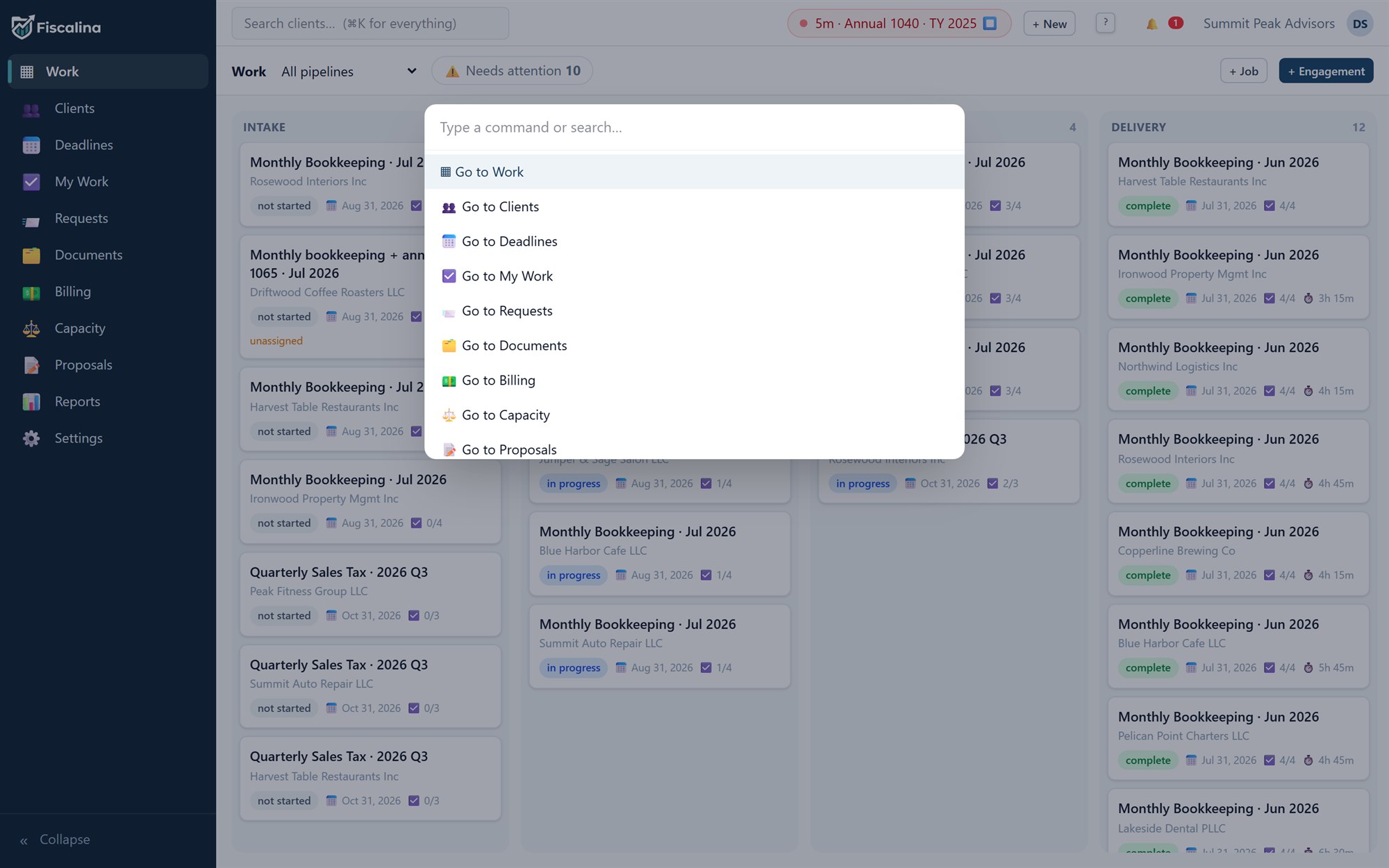
Press ⌘K (or CtrlK) anywhere. Type a few letters to jump to a view, open a record, or run a create action. It's the single fastest thing in the app — watch it work:
⌕
A live re‑creation — the real thing is even faster.
⌘K in the app
The real palette, open over the app.
Keyboard flow
Lists and boards are fully keyboard‑drivable:
J / K
Move down / up a list.
Enter
Open the selected record's drawer.
E
Advance a job to the next stage.
Esc
Close the drawer or dialog.
N / +
Quick‑create anything.
?
Show the full keymap.
Quick‑add from any dropdown
Every dropdown that lists your records — clients, contacts, pipelines, work templates, jobs — has a + button beside it. Mid‑invoice and the client isn't in the system yet? Press +, type a name, click Create: the record is created, selected, and you're back in your form without ever leaving it.
➕ Minimal on purpose
The popover asks only for what's required — a name, maybe an email. Add the EIN, address and the rest from the record's own drawer later.
🎯 Selected for you
The new record is appended to the dropdown and chosen automatically — no hunting for what you just typed.
🔗 Context carries over
Adding a signer contact from the e‑sign form? It's already attached to the client you picked. Adding a job from an expense? Same.
⚡
New client on the phone? Open the payment or invoice form anyway — the + next to the client dropdown means data entry never has to happen "later".
Inline edit, saved views & bulk actions
✏️ Inline edit
Click a name, date or email in a table, type, press Enter. No drawer needed.
⭐ Saved views
Save any filter + sort as a named view. Your morning list is one click away.
☑️ Bulk select
Tick many rows, then tag or archive them together.
↩︎ Undo
Delete or archive by mistake? A toast offers Undo, and CtrlZ restores it.
🛟
Work fearlessly. Almost everything is a soft delete with a restore. The exceptions are financial ledgers — and those you correct by voiding (Lesson 7), which is even safer.
🎓
You did it.
You've been through every corner of Fiscalina — from your first client to voiding a payment the right way. That's expert territory.
Fiscalina Academy
Certificate of Fluency
This certifies that
a very capable practitioner
has completed the full Fiscalina Academy curriculum and is ready to run a firm on it.
🗓️ Today Date
✒️ Fiscalina Practice management
Complete all ten lessons to light up your certificate. Then put it to work: